Colour Confidence: Building Palettes That Print True

An illustration can look perfect on a monitor and dull on paper. The gap is not mysterious; it comes from different colour spaces, different paper and different lighting. This guide explains how to build a palette you can trust and how to check it before you send a file to print.
Why screen and print disagree
A screen emits light, while ink reflects it. The screen can display saturated reds and greens that no CMYK press can reproduce, and paper absorbs ink in ways that shift the result. Add uncalibrated monitors and office lighting, and the same file can look like three different images.
The practical answer is not to chase an exact match. It is to work within a predictable range, soft-proof the important colours and accept that some hues will shift. Knowing which ones will shift, before you fall in love with them, is the skill that separates a reliable illustrator from a lucky one.

Start with a calibrated screen
You do not need a laboratory, but you do need a known starting point. A hardware calibrator set to a modest brightness, around 100 to 120 candelas, and a standard white point will remove the worst guesswork. Calibrate monthly if you work commercially, or before any job where colour is central.
Then control the room. Neutral walls, no direct sunlight on the screen and a consistent desk lamp help more than an expensive monitor with the wrong settings. If you edit at night with a warm bulb and proof in daylight, your files will always feel wrong in one of those conditions.
Related reading: a digital painting workflow that lasts pairs well with From Sketch to Final.
Choose a working space deliberately
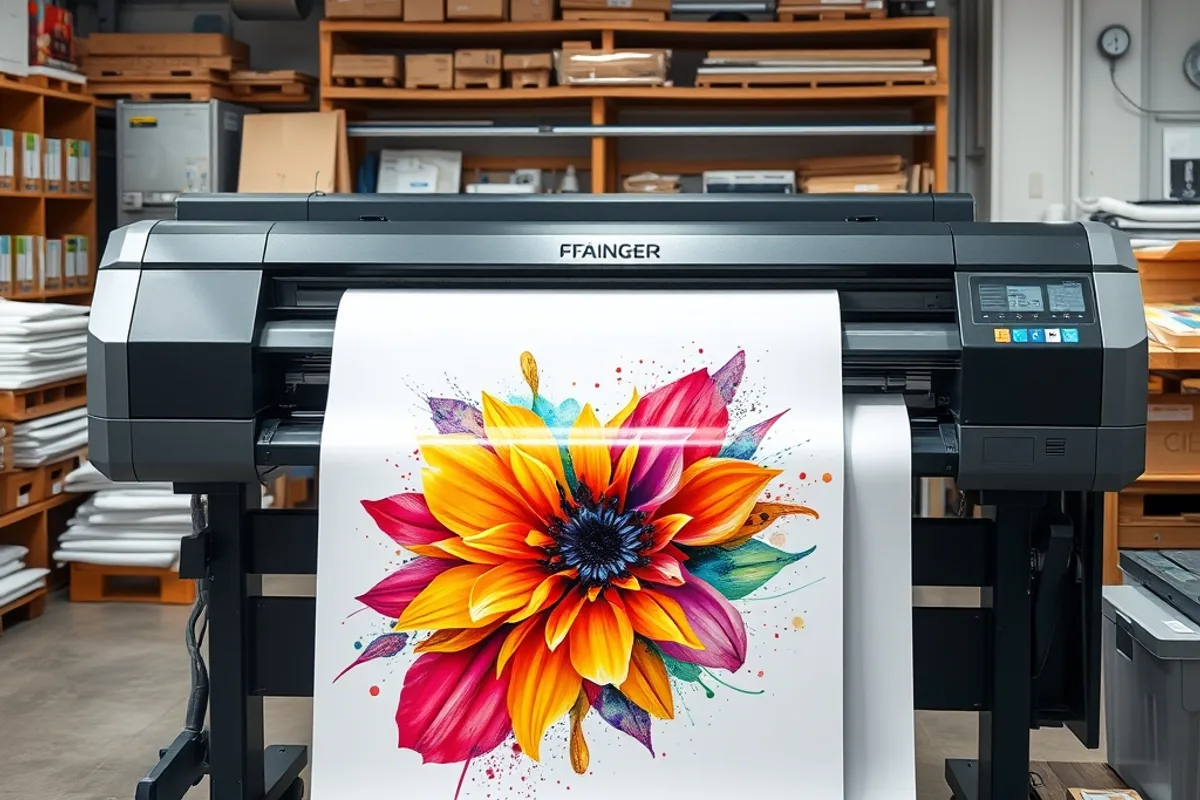
For print work, edit in a wide-gamut space such as Adobe RGB or ProPhoto RGB and keep 16-bit files until export. For web and social, sRGB is the safe target because it is what most viewers will see. The mistake is switching spaces mid-project without converting the file correctly.
When you convert, use a perceptual or relative colorimetric intent and check the result. Relative colorimetric preserves in-gamut colours and is often better for logos and flat graphics. Perceptual compresses the whole gamut and can suit photographic gradients. There is no universal right answer; there is only the check.
Confidence in colour comes from knowing what will survive the journey to paper.
Build a palette with print in mind
Start from a limited set of base colours and test them on the actual substrate. Bright oranges and deep blues are common casualties in CMYK, while earth tones and mid-greens usually survive. If a client insists on a vivid brand colour, plan a spot colour or accept a controlled shift.
Create swatches from measured values rather than picking by eye, then record the CMYK build and the hex equivalent. A palette document with names, values and intended use prevents the slow drift that happens when every new file starts from a screenshot. It also makes handoff to a printer or collaborator far easier.
Also see our guide to composition habits for stronger photos for a deeper comparison.
Soft proof before you commit
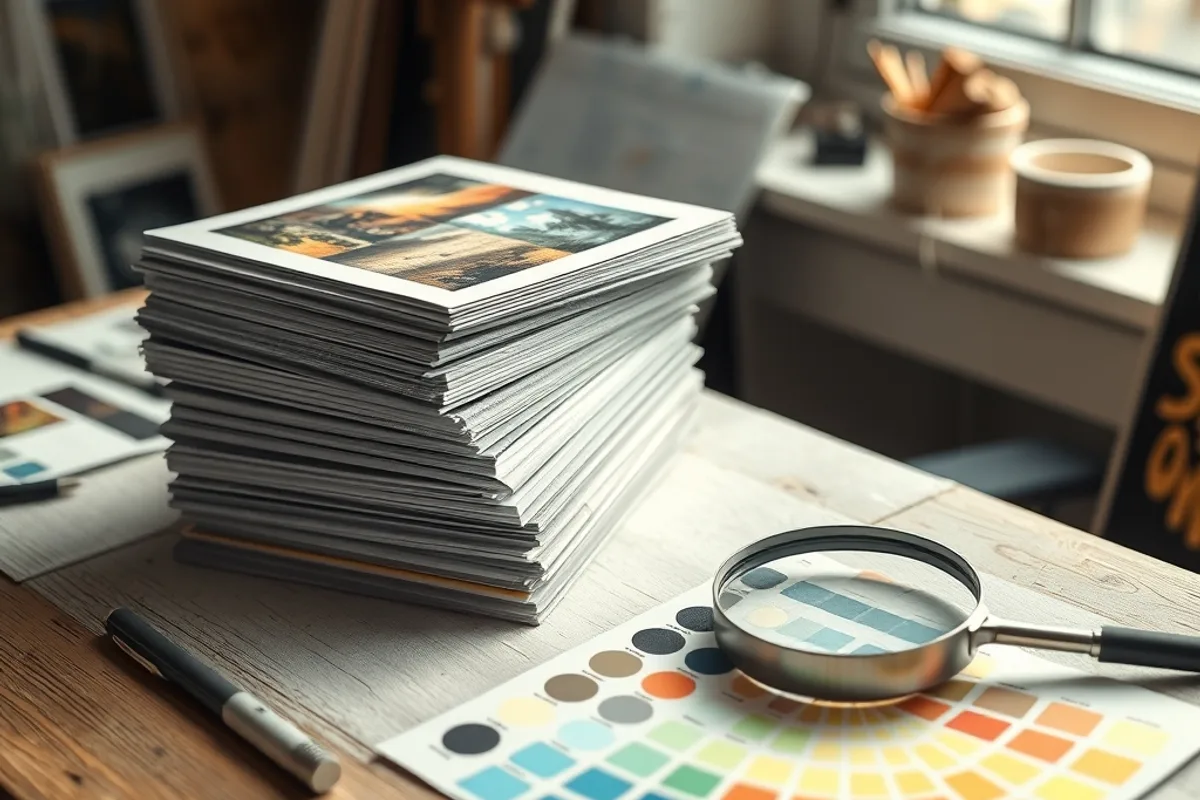
Soft proofing simulates how the file will look under a specific press and paper profile. It is not perfect, but it reveals out-of-gamut colours and shifts in the darkest tones. Turn it on, compare with the original, and adjust the areas that matter rather than flattening the whole image.
Pay attention to blacks. A rich black made from multiple inks can look deep on screen and turn muddy or slow to dry on paper. For small text, use a single black. For large areas, discuss the build with your printer. These details are boring until they ruin a print run.
Background: how colour management works.
Test on the real material
Order a small proof or print a test sheet on the paper you plan to use. Compare it under neutral light, not beside a window with a blue sky outside. Note which colours moved and by how much, then adjust the master file, not the proof, and keep a record.
Paper choice changes everything. A bright coated stock holds saturation and fine detail; an uncoated sheet absorbs ink and softens contrast. If you sell prints, standardise on one or two papers so your expectations stay calibrated. Consistency is worth more than an exotic surface.
A checklist that saves a job
Before export, confirm the colour profile, bit depth, resolution and bleed. Flatten only a copy. Embed the profile unless the printer asks otherwise. Name the file clearly and include a note about the intended paper and viewing conditions.
Then ask one question: would I be comfortable if this printed slightly darker and less saturated? If the answer is no, simplify the palette or adjust the critical area. Confidence in colour does not come from a perfect monitor. It comes from knowing what will survive the journey to paper.
- Screens emit light while ink reflects it, so some saturated hues can never match exactly.
- Calibrate the monitor to roughly 100 to 120 candelas and control room lighting.
- Use a wide-gamut, 16-bit space for print and sRGB for web exports.
- Soft proofing reveals out-of-gamut colours before a print run.
- Test on the actual paper under neutral light and adjust the master file.

From Sketch to Final: A Digital Painting Workflow That Lasts